
Dynamics 365 Business Central Keyboard Shortcuts
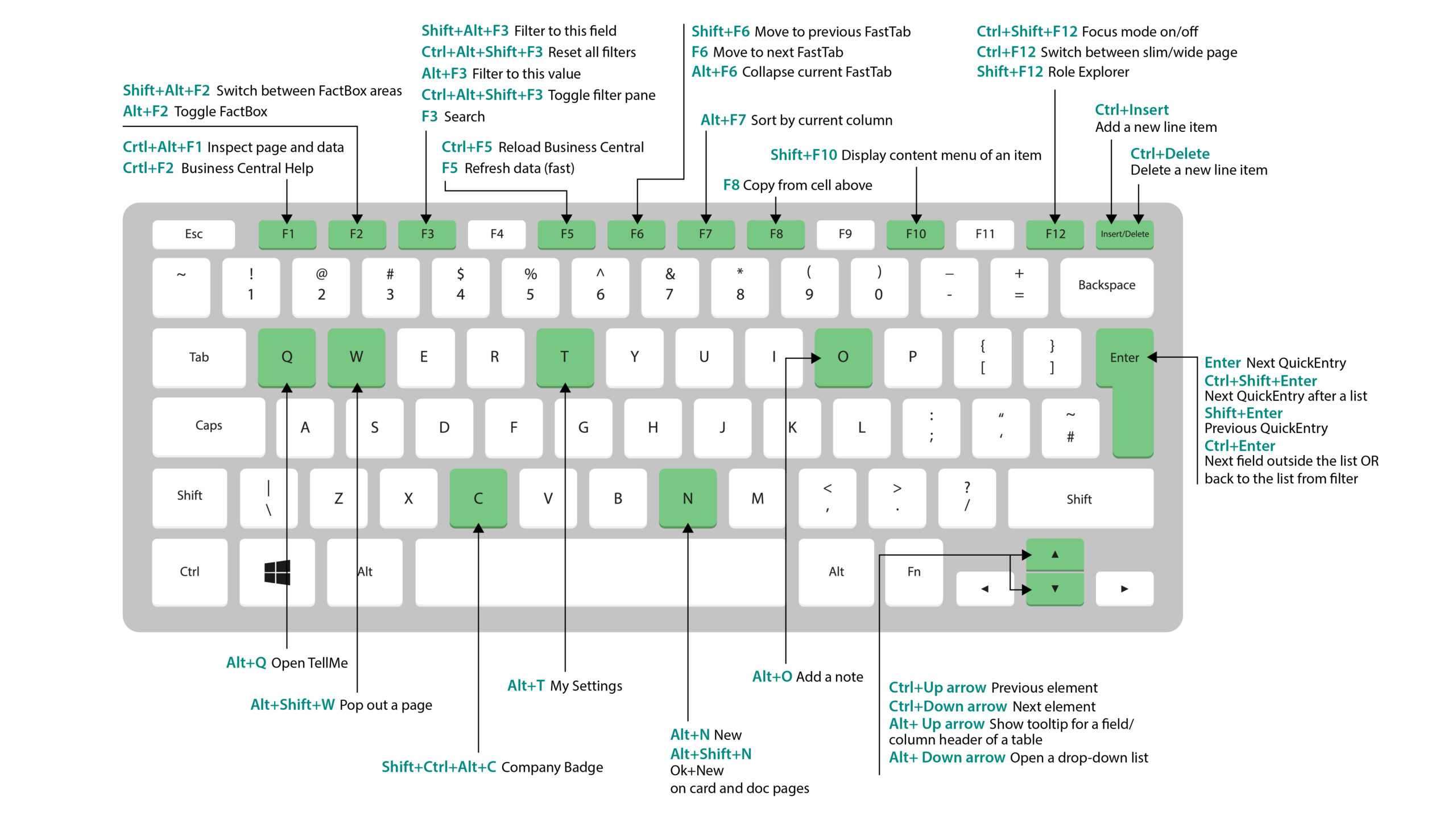
Keyboard shortcuts in Dynamics 365 Business Central can make it easier and more efficient to move to different areas in the system. Many of the shortcuts are the same for Windows or macOS. However, there are some differences. The shortcuts that differ for macOS are indicated with a *.
General keyboard shortcuts
| Press these keys | To do this |
| Alt | Show access keys for selecting actions in the action bar and navigation menu on the page. |
| Alt+Down Arrow | Open a drop-down list or look up a value for a field. |
| Alt+Up Arrow | Show tooltip for a field or a column header of a table. |
| F2 | Toggle between selecting the entire field value or placing the cursor at the end of the field value. |
| Alt+F2 | Show and hide the FactBox pane. |
| Alt+Shift+F2 | Shift between Details and Attachments in the FactBox pane. |
| Alt+O | Add a new note for the selected record, even if the FactBox pane is not open. |
| Alt+Q *Ctrl+Option+Q |
Open the Tell Me window. |
| Ctrl+Alt+Q
*Ctrl+Option+Cmd+Q |
Open the Find Entries page to find documents and entries related to each other based on common information, like document number or posting date. |
| Alt+N | Open a page to create a new record. |
| Alt+Shift+N | Close a newly created page and open a new one to create a new record. |
| Alt+T | Open the My Settings page. |
| Alt+Right Arrow | Look up additional information or underlying values for a field that contains the […] button. |
| Shift+F12 | Open the role explorer. |
| Ctrl+Alt+Shift+C | Display information in the company badge. |
| Ctrl+Alt+F1 | Open and close the page inspection pane. The page inspection pane shows information about the page. |
| Ctrl+C | Copy the value of field. If you have selected any text in the field, then it will copy the selected text only. |
| Ctrl+F1 | Open the help pane or a Business Central help article for the page. |
| Ctrl+F12 | Switch between wide and narrow layout view. |
| Ctrl+Click | Navigate during personalising or customising when the action is highlighted with an arrowhead. |
| Ctrl+F5 | Reload the Business Central application. (Similar to selecting refresh in the browser.) |
| F5 | Refresh the data on the current page. Use this to ensure that the data on the page is up-to-date with any changes. |
| Ctrl+0 | Open the Available Companies pane for switching to another company or environment. |
| Enter | Enable or access the element or control that is in focus. |
| Esc | Close the current page or drop-down list. |
| Tab | Move focus to the next control or element on a page, such as actions, buttons, fields or list headings. |
| Shift+Tab | Move focus to the previous control or element on a page, such as actions, buttons, fields or list headings. |
| Y and N | Activate Yes and No buttons in dialogues. |
Lists keyboard shortcuts
General
| Press these keys | To do this |
| Alt+F7 | Sort the selected column in ascending or descending order. |
| Alt+N | Insert a new line in an editable list, such as the G/L Budgets page. |
| Shift+F9 | Post and print a document. |
| Shift+F10 | Open a menu of options that are available for the selected row. |
| Alt+D | Open the dimension set entries. |
| Ctrl+F7 | Open ledger entries, logs entries, cost entries, etc. |
| Ctrl+F9 | Release document. |
| F7 | Open statistics |
| F9 | Post, issue, register or reverse document. |
| Shift+Ctrl+F | Send suggested lines on the cash flow worksheets page. |
| Shift+Ctrl+I | View serial and lot numbers assigned to the line item on the document or journal. |
Navigating between rows and columns
| Press these keys | To do this |
| Ctrl+Home *Fn+Ctrl+Left Arrow |
Select the first row in the list; focus remains in the same column. |
| Ctrl+End *Fn+Ctrl+ Right Arrow |
Select the last row in the list; focus remains in the same column. |
| Home *Fn+Left Arrow |
Move to the first field in the row. |
| End *Fn+Right Arrow |
Move to the last field in the row. |
| Enter | Open the record that is associated with the field. Only relevant if a card page is associated with the record. |
| Ctrl+Enter | Move focus to the next element outside the list. |
| Page Up
*Fn+Up Arrow |
Scroll to display the set rows above the current rows in view. |
| Page Down
* Fn+Down Arrow |
Move in the same column to the field in the row below. |
| Down Arrow | Move in the same column to the field in the row below. |
| Up Arrow | Move in the same column to the field in the row above. |
| Right Arrow | In a view-only list, move in the same row to the next field to the right. In an editable list, move to the right within the current field. |
| Left Arrow | In a view-only list, move in the same row to the previous field to the left. In an editable list, move to the left within the current field. |
| Tab | In editable list, move in the same row to the next field to the right. |
| Shift+Tab | In editable list, move in the same row to the previous field to the left. |
Selecting, copying and pasting
| Press these keys | To do this |
| Ctrl+Click *Cmd+Click |
Extend the selection of rows to include the row that you click. |
| Shift+Click | Extend the selection of rows to include the row that you click and all the rows in between. |
| Ctrl+Up Arrow *Ctrl+Cmd+Up Arrow |
Move focus to the row above and keep the current row selected. |
| Ctrl+Down Arrow *Ctrl+Cmd+Down Arrow |
Move focus to the row below and keep the current row selected. |
| Ctrl+Space Bar *Ctrl+Cmd+Space |
Extend the selection of rows to include the focused row. |
| Ctrl+A *Cmd+A |
Select all rows. |
| Ctrl+C *Cmd+C |
Copy the selected rows to the Clipboard. |
| Ctrl+V *Cmd+V |
Paste the selected rows from the Clipboard into the current page or external document, like Microsoft Excel or Outlook email. |
| Shift+Up Arrow | Extend the selection of rows to include the row above. |
| Shift+Down Arrow | Extend the selection of rows to include the row below. |
| Shift+Page Up *Shift+Fn+Up Arrow |
Extend the selection of rows to include all visible rows above the current selection of rows. |
| Shift+Page Down *Shift+Fn+Down Arrow |
Extend the selection of rows to include all visible rows below the current selection of rows. |
| F8 | Copy the field in the same column of the row above and paste it into the current row. |
Searching and filtering Lists
| Press these keys | To do this |
| F3 | Toggles the search box. If the search box is already activated, F3 returns to the list without clearing the search text. |
| Shift+F3 | Open and close the filter pane. Shift+F3 opens the filter pane and focuses on the + Filter action under Filter list by. |
| Ctrl+Shift+F3 | Open and close the filter pane. Ctrl+Shift+F3 opens the filter pane and focuses on the + Filter action under Filter total by. |
| Alt+F3 | Toggle filtering to the selected value. Applies a column filter on the selected field value in the list. If the column is already filtered, Alt+F3 clears the filter on that column. |
| Shift+Alt+F3 | Open the filter pane and add a filter on the selected column in the list. If there is already a filter on the field, a new filter is added. |
| Ctrl+Shift+Alt+F3 | Reset filters. Filters return to the default filters for the current view. If the current view is All, then this is the same as returning to an unfiltered view with all records. |
| Ctrl+Enter | Change focus from the filter pane back to the list. |
Cards and documents keyboard shortcuts
| Press these keys | To do this |
| Alt+D | Open the dimension set entries |
| Alt+F6 | Toggle collapse/expand for the current FastTab. |
| Alt+F9 | Create new document and post it. |
| Alt+G | Open the Find Entries page for finding entries related to the posted document. Works on lists also. |
| Alt+N | Open a page to create a new record; the same way as choosing the New action. |
| Alt+Shift+N | Close a page and open a new one to create a new record; the same way as selecting the OK & New action. |
| Alt+Shift+W | Open the current card or document in a new window. |
| Ctrl+Enter | Save and close the page. |
| Ctrl+Down Arrow | Open the next record for an entity. |
| Ctrl+Up Arrow | Open the previous record for an entity. |
| Ctrl+Insert | Insert a new line in documents. |
| Ctrl+Delete | Delete the line in documents, journals and worksheets. |
| Ctrl+F7 | Open ledger entries, logs entries, cost entries and so on. |
| Ctrl+F9 | Release document. |
| Ctrl+Shift+F12 | Maximise the line items part on a document page. Press the keys again to return to the normal display. |
| F6 | Move to the next FastTab or part (sub-page). |
| F7 | Open statistics. |
| F9 | Post, issue, register or reverse document. |
| Shift+Ctrl+F9 | Post, print and put away warehouse receipt. |
| Shift+F6 | Move to previous FastTab or part (sub-page). |
| Shift+F9 | Post and print a document. |
Quick entry keyboard shortcuts for fields
| Press these keys | To do this |
| Enter | Confirm the value in the current field and go to the next Quick Entry field. |
| Shift+Enter | Confirm the value in the current field and go to the previous Quick Entry field. |
| Ctrl+Shift+Enter | Confirm the value in the current column and go to next Quick Entry field outside the list. |
Keyboard shortcuts in calendar
| Press these keys | To do this |
| Ctrl+Home | Open the calendar if closed. |
| Ctrl+Home *Cmd+Home |
Move to the current month, current day. |
| Ctrl+Left Arrow *Cmd+Left Arrow |
Move to the previous day. |
| Ctrl+Right Arrow *Cmd+Right Arrow |
Move to the next day. |
| Ctrl+Up Arrow *Cmd+Up Arrow |
Move to the previous week, same day of the week. |
| Ctrl+Down Arrow *Cmd+Down Arrow |
Move to the next week, same day of the week. |
| Enter | Select the focused date. |
| Ctrl+End *Cmd+End |
Close the calendar and delete the current date. |
| Esc | Close the calendar without a selection, keep the current date. |
| Page Down | Move to the next month. |
| Page Up | Move to the previous month. |
Date fields keyboard shortcuts
| Press these keys | To do this |
| t | Enter the current date. “T” stands for “today”. |
| w | Enter the work date. |
Report preview keyboard shortcuts
| Press these keys | To do this |
| Down Arrow | Scroll down the page. |
| Up Arrow | Scroll up the page. |
| Ctrl+0 *Cmd+0 |
Fits the entire page on the page. |
| Ctrl+Home *Cmd+Home |
Go to the first page of the report. |
| Ctrl+End *Cmd+Home |
Go to the last page of the report. |
| Left Arrow | Scroll to the left when the page is zoomed in so that it is not entirely in view. |
| Right Arrow | Scroll to the right when the page is zoomed in so that it is not entirely in view. |
| Page Down *Fn+Down Arrow |
Go to the next page of the report. |
| Page Up *Fn+Up Arrow |
Go to the previous page of the report. |
Keyboard Shortcuts for Zooming In and Out
| Press these keys | To do this |
| Ctrl++ | Zoom in on the current page. |
| Ctrl+- | Zoom out on the current page. |
| Ctrl+0 | Zoom in or out to 100% on the current page. |
Keyboard Shortcuts for Role Explorer
| Press these keys | To do this |
| Shift+F12 | Open the role explorer. |
| F3 | Open the Find box in role explorer for finding features based on a given search word or term. |
| F3 or Ctrl+Up Arrow | Moves focus to the next found feature in role explorer. F3 will move focus to the Find box after the last found feature. |
| Shift+F3 or Ctrl+Up Arrow | Move focus to the previous found feature in role explorer. |
| Ctrl+Shift | Expand or collapse all subnodes, in addition to top-level nodes, when you choose the Expand or Collapse action. |
Numeric Keypad Shortcuts
| Press these keys | To do this |
| Alt+Decimal Separator | Switch the output of the decimal separator key to either a full stop (.) or the character determined by the Region setting of the My Settings page. |
August 11, 2023
RECENT POSTS

What Should UK Construction Firms Look for When Choosing an ERP System?
What Should UK Construction Firms Look for When Choosing an ERP System? At a Glance Construction firms need ERP systems that can connect financial information with the realities of managing multiple projects, budgets, resources and [...]

Is Business Central the Right ERP for a Growing Wholesale or Distribution Business?
Is Business Central the Right ERP for a Growing Wholesale or Distribution Business? At a Glance Growing wholesale and distribution businesses can outgrow spreadsheets and legacy systems as order volumes, inventory, locations and operational complexity [...]

What Is Group Making Tax Digital and Does It Apply to Your Business?
What Is Group Making Tax Digital and Does It Apply to Your Business? At a Glance Group Making Tax Digital applies MTD for VAT requirements to businesses registered with HMRC as a VAT group. Member [...]